Command line shell
Concert comes with a command line interface that is launched by typing
concert into a shell. Several subcommands define the action of the tool.
Session commands
The concert tool is run from the command line. Without any arguments, its
help is shown:
$ concert
usage: concert [-h] [--version]  ...

optional arguments:
  -h, --help  show this help message and exit
  --version   show program's version number and exit

Concert commands:

    init      Create a new session
    edit      Edit a session
    log       Show session logs
    show      Show available sessions or details of a given *session*
    mv        Move session *source* to *target*
    cp        Copy session *source* to *target*
    rm        Remove one or more sessions
    import    Import an existing *session*
    export    Export all sessions as a Zip archive
    start     Start a session
    docs      Create documentation of *session* docstring
    spyder    Start session using Spyder
The tool is command-driven, that means you call it with a command as its first argument. To read command-specific help, use:
$ concert [command] -h
Note
When Concert is installed system-wide, a bash completion for the
concert tool is installed too. This means, that commands and options
will be completed when pressing the Tab key.
init
Create a new session with the given name:
concert init experiment
If such a session already exists, Concert will warn you.
Note
The location of the session files depends on the chosen installation method.
If you installed into a virtual environment venv, the files will be
stored in /path/to/venv/share/concert. If you have installed Concert
system-wide our without using a virtual environment, it is installed into
$XDG_DATA_HOME/concert or $HOME/.local/share/concert if the former
is not set. See the XDG Base Directory Specification
for further information. It is probably a very good idea to put the
session directory under version control.
edit
Edit the session file by launching $EDITOR with the associated Python
module file:
concert edit session-name
This file can contain any kind of Python code, but you will most likely just add
device definitions and import processes that you want to use in a session. If the
session-name doesn’t exist it is created.
log
Show log of session:
concert log session-name
If a session is not given, the log command shows entries from all sessions.
- --follow
Instead of showing the past log, update as changes come in. This is the same operation as if the log file was viewed with
tail -f.
By default, logs are gathered in $XDG_DATA_HOME/concert/concert.log. To
change this, you can pass the --logto and --logfile options to the
start command. For example, if you want to output log to stderr use
concert start experiment --logto=stderr
or if you want to get rid of any log data use
concert start experiment --logto=file --logfile=/dev/null
show
Show all available sessions or details of a given session:
concert show [session-name]
mv
Rename a session:
concert mv old-session new-session
cp
Copy a session:
concert cp session session-copy
rm
Remove one or more sessions:
concert rm session-1 session-2
Warning
Be careful. The session file is unlinked from the file system and no backup is made.
import
Import an existing session from a Python file:
concert import some-session.py
Concert will warn you if you try to import a session with a name that already exists.
Warning
The server certificates are not verified when specifying an HTTPS connection!
export
Export all sessions as a Zip archive:
concert export foobar
Creates a Zip archive named foobar.zip containing all sessions.
start
Load the session file and launch an IPython shell:
concert start session-name
The quantities package is already loaded and named q.
- --logto={stderr, file}
Specify a method for logging events. If this flag is not specified,
fileis used and assumed to be$XDG_DATA_HOME/concert/concert.log.
- --logfile=<filename>
Specify a log file if
--logtois set tofile.
- --loglevel={debug, info, warning, error, critical}
Specify lowest log level that is logged.
- --non-interactive
Run the session as a script and do not launch a shell.
- --filename=<filename>
Start a session from a file without initializing.
Note
You may use the await keyword in session files and the sesion will be
loaded correctly, for details see Importing.
docs
Create a PDF documentation for a session:
concert docs session-name
Creates a PDF manual named session-name.zip with the contents taken from the session’s docstring. The docstring should be formatted in Markdown markup.
Importing
When you import a module or a session, before anything else, concert first looks
into the sessions directory. If the module is not found, it looks into the
current working directory and if it is not found even there it searches in
sys.path, where all the standard paths are stored.
Concert can run sessions with top-level await (outside async def
functions). Sessions can also import such modules into them and even nest such
imports. There are two limitations to this:
if you have a top-level
awaitin a module, you cannot use the asyncio’s loop, e.g. by concert’srun_in_loopfunctionyou cannot import modules with top-level
awaitinside functions, you need to put the imports to the top level
For example, this is possible (session motors):
from concert.devices.motors.dummy import LinearMotor

motor = await LinearMotor()
and this is possible:
from motors import motor
from concert.quantities import q

await motor.set_position(1 * q.mm)
On the other hand, this is not possible:
async def foo():
    import motors  # The example session above

await foo()
and this is not possible:
from concert.coroutines.base import run_in_loop
await asyncio.sleep(1)
run_in_loop(asyncio.sleep(1))
Remote access
Concert comes with two shell scripts that leverage the terminal multiplexer tmux and the secure shell protocol. Thus you must have installed and started an OpenSSH server as well as the relevant ports opened.
To start a Concert session server run:
concert-server <session-name>
This starts a new tmux session which you can detach from by typing Ctrl-B. On a client machine you can connect to the server and tmux session by running:
concert-connect <host address>
Extensions
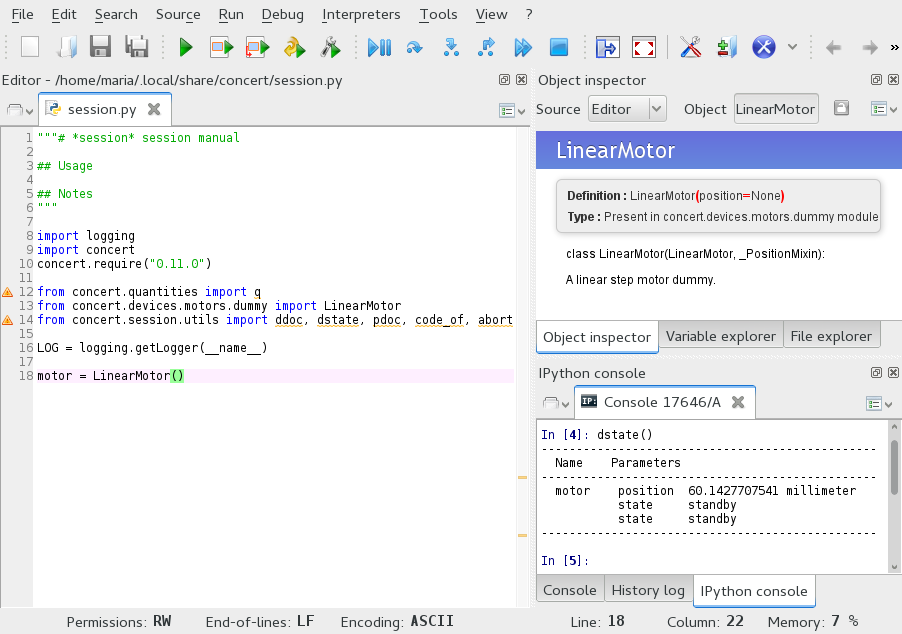
Spyder
If Spyder is installed, start the session within the Spyder GUI:
concert spyder <session-name>
In Spyder you can for example edit the session, check the documentation or run an IPython console or a Python interpreter: